
 ProteoBench
LFQ, precursor ion (QExactive)#
beta Quantification — DDA, Q Exactive HF-X Orbitrap, precursor-ion level
This module is in beta stage
This module has been validated and is suitable for submissions. However, metrics or thresholds may be refined as we gather more community results and feedback.
Compares label-free quantification (LFQ) accuracy and sensitivity for workflows run on data-dependent acquisition (DDA) data from a Q Exactive HF-X Orbitrap (Thermo Fisher). This is the reference module to start with if you’re new to ProteoBench — see Your First Submission for the full submission walkthrough.
At a glance#
Acquisition |
DDA |
Instrument |
Q Exactive HF-X Orbitrap |
Level |
Precursor ion (modified sequence + charge) |
Metric |
Epsilon (quantification accuracy) |
What this module tests#
This module is best suited to evaluate the impact of, among others:
search engine identification
peak picking
match-between-runs
low-level ion signal normalization
It is not designed to evaluate later-stage post-processing of quantitative data (e.g. missing value replacement or manual filtering) — please upload data without that kind of post-processing. Other modules focus specifically on those steps.
Dataset#
A subset of the Q Exactive HF-X DDA data described in Van Puyvelde et al., 2022: the first biological replicate series (“alpha”), three technical replicates of two conditions (“A” and “B”). The samples are a mixture of commercial peptide digest standards — Escherichia coli, yeast, and human — combined at logarithmic fold changes (log2FC) of 0, −1, and 2 for human, yeast, and E. coli respectively. MS survey scans covered 350–1400 m/z.
See the original publication for the full sample preparation and acquisition parameters.
Download:
Individually from ProteomeXchange PXD028735
FASTA (HYE mixed species + contaminants), contaminants from Frankenfield et al., JPR
Important
Do not rename the downloaded raw files.
How the metric is calculated#
For each precursor ion, ProteoBench sums the signal per raw file, removes contaminants (flagged
Cont_ in the FASTA) and precursors matching multiple species, log2-transforms the remaining
values, then computes the mean and coefficient of variation (CV) per condition. The difference
between the mean log2 intensity in A and B is compared against the expected log2 fold change for
that precursor’s species (human: 0, yeast: 1, E. coli: −2) — that difference is epsilon.
The main plot shows the number of unique precursor ions quantified (vertical axis) against the mean or median absolute epsilon (horizontal axis). Each tool’s section below describes any tool-specific handling before this point.
Run your workflow#
Run your analysis on the downloaded files with the tool of your choice, then follow Your First Submission to upload, inspect, and (if you’d like) submit your results publicly. The web app is where you upload results and, later, submit them for public review.
Tool-specific setup#
Table: input files required for metric calculation and public submission
Tool |
Input file |
Parameter file |
|---|---|---|
AlphaPept |
|
|
Custom |
|
— |
DIA-NN |
|
|
FragPipe |
|
|
MSAngel |
|
|
MaxQuant |
|
|
MetaMorpheus |
|
|
PEAKS |
|
|
ProlineStudio |
|
|
Sage |
|
|
WOMBAT |
|
|
i2MassChroQ |
|
|
quantms |
|
|
Expand a tool below for setup details.
AlphaPept (legacy tool)
AlphaPept is labelled a legacy tool since it hasn’t been actively developed for over a year, and may underperform relative to more recent versions of other tools.
Load the folder containing the data files.
Set parameters; for Match Between Runs, select “Match”.
Upload
result_peptides.tsv(identifications) andresults.yaml(parameters).
ProteoBench reads shortname (raw file name), protein (accessions and species), sequence,
charge, decoy ("true" filtered out), and ms1_int_sum_apex_dn (intensity) from
result_peptides.tsv.
FragPipe
Select the LFQ-MBR workflow (single enzyme only).
After importing raw files, assign experiments “by File Name”.
Do not add contaminants when adding decoys to the database.
Upload
combined_ion.tsvfor scoring, andfragpipe.workflowas the parameter file.
ProteoBench reads Modified Sequence, Charge, and Protein — concatenated with Mapped Proteins
(FragPipe splits protein groups across these two columns) — from combined_ion.tsv; decoys are
assumed already removed.
i2MassChroQ
A ProteoBench-compatible export is built in: after identification, choose “MassChroQ” for
quantification, load the results into MCQR, and use its “ProteoBench export” button. This produces
proteobench_export.tsv (columns: rawfile, sequence, ProForma, charge, proteins, area)
and Project parameters.tsv for public submission. Protein identifiers should look like
sp|P49327|FAS_HUMAN; decoys are assumed already removed.
See the i2MassChroQ documentation.
If you search with X!Tandem, its default “quick acetyl” and “quick pyrolidone” options search for N-terminal acetylation and pyroglutamate as variable modifications — turn these off if you don’t want them included.
MaxQuant
By default MaxQuant uses its own contaminants-only FASTA. This module’s FASTA already includes a
curated contaminant set, so in MaxQuant (Global parameters → Sequences), untick “Include
contaminants”. When uploading raw files, use “No Fractions” and name experiments
A_Sample_Alpha_01…A_Sample_Alpha_03, B_Sample_Alpha_01…B_Sample_Alpha_03.
Upload evidence.txt (in the txt output folder) for scoring, and mqpar.xml for public
submission. ProteoBench reads Modified sequence, Proteins, Raw file, and Charge; decoys are
assumed already removed.
Troubleshooting — FASTA header parsing: the Proteins column must report proteins as
sp|O75822|EIF3J_HUMAN (;-separated for groups). Recent MaxQuant defaults
(Identifier rule = >([^ ]*), Description rule = >(.*)) work correctly; some older versions don’t
expose this setting and aren’t compatible.
MetaMorpheus (work in progress)
Run a Search Task on the input data (don’t rename files), using the FASTA provided.
Enable LFQ quantification (FlashLFQ) — on by default in the GUI, or set
DoQuantification = truein the CLI.toml.Upload
AllQuantifiedPeaks.tsvfrom the task-specific output folder.For public submission, upload two parameter files: the task’s
Task<name>SearchTaskconfig.toml(not the CLI config) andallResults.txt(used to parse the MetaMorpheus version). Order doesn’t matter; an error shown after the first file disappears once the second is added.
MSAngel (work in progress)
MSAngel builds bottom-up MS pipelines combining a search engine, validation strategy, and Proline quantification. See the MS Angel site for details.
PEAKS
When starting a project, sample names can stay as PEAKS assigns them, as long as they correspond to
LFQ_Orbitrap_DDA_Condition_A_Sample_Alpha_01…_03 and the equivalent for condition B.
Set Enzyme = trypsin, Instrument = Orbitrap (Orbi-Orbi), Fragment = HCD, Acquisition = DDA. In the workflow, use PEAKS Q (de novo assisted search quantification); set “Label Free” in the Quantification tab; set both Peptide and Protein Group FDR to 1% in the Report tab. Once the workflow finishes, check “All Search Parameters” and the “Feature Vector CSV” under Label Free Quantification Exports in the Export tab.
ProlineStudio
Name peaklists with the same prefix as the raw files (via peaklist naming or auto-rename).
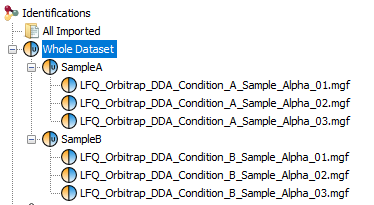
Use the Excel export. The Quantified peptide ions tab must contain samesets_accessions and
subsets_accessions (combined to determine species per sequence); quantities come from XICs.
Duplicated shared-peptide rows across ProteinSets are combined before scoring. Decoys are assumed
already removed. Quantitative columns look like
abundance_LFQ_Orbitrap_DDA_Condition_A_Sample_Alpha_01.mgf.
For public submission, upload the same Excel export with the Search settings and infos,
Import and filters, and Quant config tabs present — a template ensuring the right tabs/columns
are exported would normally be linked here (see the note below). Make sure no personal information
is in the file. The ProlineStudio version is only exported in parameters from v2.3 onward.
Note
The template file previously linked here (ProlineStudio/template.json) is missing from the
current repository — if you’re picking this up, please re-add it and restore the link.
Sage
Convert
.rawfiles to.mzMLwith MSConvert or ThermoRawFileParser (don’t rename files).Run Sage with a
.jsonconfig.Upload
lfq.tsvfor scoring andresults.jsonas the parameter file.
Important: for ion-level modules like this one, do not set combine_charge_states: true.
ProteoBench reads proteins, peptide, and charge from lfq.tsv.
quantms (work in progress)
Upload the ProteomicsLFQ (OpenMS) output named <project-name>.sdrf_openms_design_msstats_in.csv.
Parameters for public submission are parsed from versions.yml and the pipeline-info step’s
params_<timestamp>.json. Several PTM-containing variants still need testing.
Custom format
If your tool isn’t listed above, upload a tab-delimited table with:
Sequence— unmodified peptide sequenceModified sequence— sequence with localized modifications, in ProFormaProteins—;-separated identifiers, including the species flag (e.g._YEAST)Charge— precursor chargeone quantitative column per sample:
LFQ_Orbitrap_DDA_Condition_A_Sample_Alpha_01…LFQ_Orbitrap_DDA_Condition_B_Sample_Alpha_03
The table must not contain non-validated precursor ions. Results submitted this way can’t currently be made public — see Your First Submission.
How ProteoBench maps each tool’s columns#
Each tool’s output format is described in a .toml file under
proteobench/io/parsing/io_parse_settings/ in the codebase. Briefly, each file defines:
[mapper]— maps input column headers to ProteoBench’s internal names (Raw file,Sequence,Modified sequence,Charge,Proteins,Intensity,Reversefor decoy flags). If the input needs extra handling before scoring (e.g. FragPipe’s two separate protein-ID columns), that’s noted here too.[condition_mapper]— which raw file belongs to condition A vs. B.[run_mapper]— raw file to display name (condition + replicate).[species_mapper]— protein-ID suffix to species, for expected-ratio lookup.[general]— the contaminant flag (Cont_for this module) and decoy flag used for filtering.[modifications_parser](where needed) — how to parse a combined sequence-with-modifications column into a stripped sequence plus localized modifications.
Result columns#
After upload, the results table includes: the precursor ion (modified sequence + charge); mean and standard deviation of log2-transformed and of raw intensity per condition; CV per condition; the difference of mean log2 values between conditions; per-raw-file intensity; the number of raw files with a non-missing value; species and whether the sequence is species-specific; the expected ratio for that species; and epsilon.
Use the slider to set the minimum number of raw files a precursor must be quantified in to be included in the plot (e.g. selecting 3 keeps only precursors seen in ≥3 raw files).
Parameters tracked for public submission#
Upload your parameter file in the drag-and-drop area under “Download calculated ratios” — see Tool-specific setup above for which file that is per tool. ProteoBench tracks:
software tool name and version; search engine name and version, if different
FDR threshold (PSM, peptide, protein level)
match-between-runs (on/off)
precursor and fragment mass tolerance
enzyme (Trypsin, for this dataset) and maximum missed cleavages
minimum/maximum peptide length
fixed and variable modifications, and the maximum number of modifications
minimum/maximum precursor charge
If any of these are missing from your parameter file, add them in the Comments for submission
field — anything ProteoBench can’t parse automatically should go there.
Check your parameter file for personal information
See Your First Submission — parameter files can embed local file paths that reveal personal or institutional information.
Once submitted you’ll get a pull-request link — save it to track your submission (see what happens next). Contact us or open an issue with any problems.